Pilot's manual
Flight
manual
The missions, the wingmen and the Kilrathi are the 1990 game's own. This is what you press: life aboard the Tiger's Claw, the controls on keyboard, mouse, gamepad and joystick, the cockpit, the radio and co‑op.
Getting started
Wing Commander RTX installs from your own copy of the game. The first time:
- Unzip the download somewhere (Desktop, Documents...). Don't run it from inside the zip.
- Double-click
Play Wing Commander RTX.exe. If Windows says it protected your PC, choose More info, then Run anyway: the game isn't signed. - Point it at your copy. If Wing Commander from Steam or GOG is installed, it finds it and asks: choose Yes. Otherwise choose
Wing1.exein Steam'sKilrathi_Sagafolder,WC.EXEin GOG's Wing Commander folder, or your Wing Commander: The Kilrathi Saga disc 1 image (.iso). It checks every file and copies the game's data in. Nothing is mounted and no administrator rights are needed. With GOG's copy the sound effects are the 1990 game's own synthesized ones; everything else is the same. - At the title, start a new campaign. Once you've saved one, the title offers to continue it too.
You fly as Blair, callsign Hotshot, as the Sega CD cast says it. Alt+Enter switches between a window and full screen, Esc opens the options menu in flight and aboard the Claw, and F10 opens the controls menu at any time.
Installing again
To install from another copy (Steam's, GOG's or a disc image) or mend a damaged install, open a Command Prompt in the game's folder and run "Play Wing Commander RTX.exe" --setup. Your saved games are kept.
Updates
When you start the game it checks for a new version and asks before downloading it. Only the files that changed come down, and your saved games aren't touched. Answer No to play this version for now, or Cancel to skip that version; "Play Wing Commander RTX.exe" --update checks again. An empty file named no-auto-update.txt beside the game's .exe turns the checks off.
Aboard the Tiger's Claw
Between missions you're aboard the carrier. Point and click: the line at the bottom of the screen says what the spot under the pointer does. On a gamepad the left stick moves the pointer, the D-pad jumps it from one spot to the next and Cross / A clicks (off the couch).
The bar
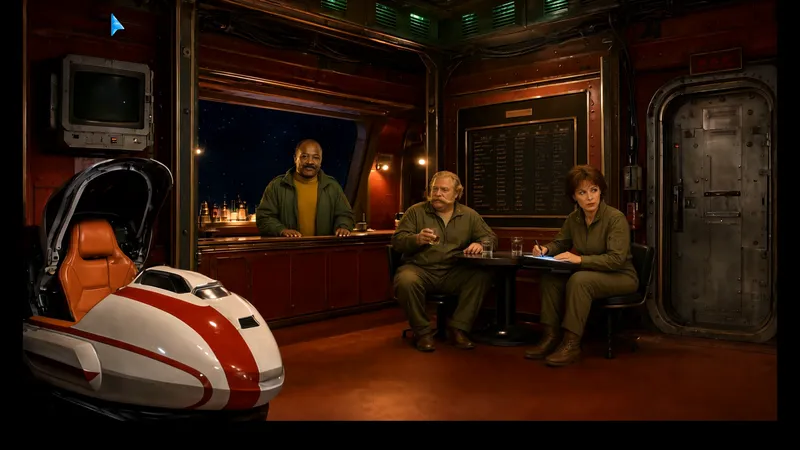
- Shotglass, the bartender: talk to him.
- The pilot in the left-hand chair: talk to them.
- The pilot in the right-hand chair. Who sits at the table changes with who's aboard.
- The killboard: every pilot's missions and kills, yours among them.
- The door to the barracks.
- The training simulator: waves of Kilrathi, for a score against the clock.
The barracks
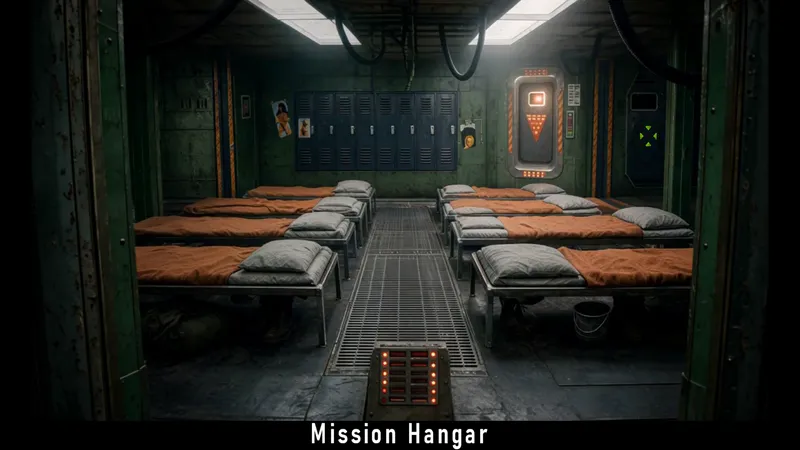
- Mission Hangar: fly your next mission.
- Back to the bar.
- The airlock: quit the game.
- The lockers: your medals and ribbons, on your jacket.
- A bunk's pillow: wake up in the game saved there. A bunk with a pilot asleep in it holds a save.
- A bunk's blanket: save your campaign in that bunk, under a name you give it.
Eight bunks, eight saved games.
Co-op
F9 in the bar or the barracks opens the co-op lobby. See Co-op and voice chat.
Flying a mission
- Mission Hangar, in the barracks, takes you to the briefing. Colonel Halcyon sets out the nav points and what to do at each one.
- The scramble and the launch play, and you're in space with your wingman.
- A flies the autopilot to the next nav point, your wingmen with you. N shows where you're headed; N again opens the nav map.
- Deal with whatever's waiting at each nav point.
- When it's done, head home and ask to land: target the Tiger's Claw with T, press C, choose the Claw, then Request Landing.
- The landing, the debriefing and any medals or promotion follow.
How your wing does in each series decides where the campaign goes next, and the story's wingmen can be lost for good.
If your fighter is finished, eject with Ctrl+E or Alt+E. A damaged ejection system may fail, and a destroyed one won't fire at all.
The options menu
Esc, or Options / Menu on a pad, opens it in flight and aboard the Claw (the bar, the barracks). The game waits while it's open. In a co-op game the same keys pause instead.
| Co-op: host or join a game | The co-op lobby, as F9 (in the bar or the barracks) |
|---|---|
| Display | Full screen or a window |
| Smooth flight | Space at your display's refresh rate, or only the game's own frames |
| NVIDIA DLSS | Off, DLAA, Quality, Balanced, Performance or Ultra Performance (GeForce RTX cards) |
| Frame Generation | Off, 2x, 3x or 4x, as far as your card goes |
| NVIDIA Reflex | Off, On, or On + Boost |
| Ray Reconstruction | On or off |
| Ray tracing | On or off, and its parts on their own: shadows, reflections, and laser and explosion light |
| Space dust · Cockpit sway | On or off |
| Joysticks, HOTAS and gamepads | The controls menu, as F10 |
| Cutscenes | The new films and talking-head videos, or the game's original 1990 cutscenes, people, bar and barracks. The voices stay either way |
- Moving about: the arrow keys, the mouse or the D-pad pick a line and change its value; Enter or A opens the co-op lobby or the controls menu, or quits; Esc, B or Options / Menu goes back to the game.
- When changes show: most at once. Turning Frame Generation or Ray Reconstruction on when it was off at the start waits until you next start the game, and the menu says so. The cutscene choice counts from the next cutscene.
- Your choices are kept in
bin\wc1-rtx-settings.txt. A setting from Settings for the curious set before the game starts wins over the menu's.
Keyboard
The 1990 game's own keys, all of them still there.
| ↑ ↓ ← → or the keypad | Steer. ↑ pushes the nose down and ↓ pulls it up, like a flight stick. |
|---|---|
| Home PgUp End PgDn | Steer diagonally |
| Shift + a direction | Turn at the full rate at once |
| , . or Ins Del | Roll left, roll right |
| 5 on the keypad | Stop turning |
| + - | Faster, slower (the keypad's too) |
| \ | Full speed |
| Backspace | Full stop |
| Tab or keypad * | Afterburner, while held |
| Space | Fire the guns |
|---|---|
| Enter | Fire a missile, or drop a mine when mines are selected |
| G | Weapons display; again: the next gun |
| W | Weapons display; again: the next missile |
| D | Damage display |
| T | Target display; again: the next target on screen |
| L | Lock onto the target, or let go |
| N | Navigation display; again: the nav map |
|---|---|
| A | Autopilot to the next nav point |
| C | Communications; then 1–9 pick what to say, Esc closes it |
| B | Tell your wingman to break and attack |
| H | Tell your wingman to form on your wing |
| F1 | Front; F1 again hides or shows the cockpit |
|---|---|
| F2 F3 F4 | Left, right, rear |
| F5 | Chase camera behind your fighter; again: the other chase camera |
| F6 | Battle view |
| F7 | Tracking camera on your target (needs a target) |
| F8 | Missile camera on or off: when on, the view follows each missile you fire |
| F9 | Outside camera, ship by ship |
| Esc | The options menu (in a co-op game: pause) |
|---|---|
| P | Pause |
| Ctrl+E or Alt+E | Eject |
| Alt+Enter | Window or full screen |
| F10 | Controls menu (joysticks, HOTAS, pedals) |
| M | How long messages stay on screen |
| V | Pilots' faces on the comms screen, or not |
| Ctrl+M · Ctrl+S | Music on or off · sound effects on or off |
| Ctrl+↑ Ctrl+↓ | Sound effects louder, quieter |
| Ctrl+→ Ctrl+← | Music louder, quieter |
| ` (~), the key under Esc | Push-to-talk, in a co-op game |
Mouse
- Move the pointer to steer: the fighter turns toward it, harder the further it is from the centre.
- Left button: the guns. Both buttons: a missile.
- Double-click the right button and hold it: the afterburner.
- Hold the right button and move the mouse: left and right roll, up and down change your speed.
- Aboard the Claw, point and click.
Gamepad
A PS5 or Xbox controller works as soon as it's plugged in; plug it in before starting the game.
| Left stick | Pitch and yaw |
|---|---|
| Right stick | Left and right: roll. Up and down: speed. |
| R2 / RT, or Cross / A | Guns |
| L2 / LT, or Circle / B | Missile |
| Square / X | Afterburner, while held |
| Triangle / Y | Target display |
| L1 / LB | Weapons display (guns) |
| R1 / RB | Select a missile |
| D-pad up | Next view: front, right, rear, left. The PS5's touchpad and the Xbox Share button do it too. |
| D-pad down | Full stop |
| D-pad left | Communications |
| D-pad right | Lock target |
| L3 (press the left stick) | Nav map |
| R3 (press the right stick) | Autopilot |
| Options / Menu | The options menu (in a co-op game: pause) |
| Create / View | Escape |
In a co-op game, hold the PS5's mic button or the Xbox Share button to talk.
Off the couch
The whole game plays from the pad, flying and everything between.
| Left stick | Moves the pointer |
|---|---|
| D-pad | Jumps the pointer from one thing you can pick to the next |
| Cross / A | Clicks; yes to a question; goes on past a message |
| Circle / B | No to a question |
| Square / X, in a room | The co-op lobby (as F9) |
| Cross / A, Options / Menu or Share / View | Skips a film |
| Options / Menu, in the bar or the barracks | The options menu |
| Options / Menu, held a second | The controls menu (as F10), anywhere but in flight |
- Naming a saved game: D-pad up and down change the last letter, right adds a letter, left removes one. Cross / A saves (an empty name saves as "BUNK" and its number), Circle / B cancels.
- The co-op lobby: Cross / A on a code or password box spells it with the D-pad.
Joysticks, HOTAS and pedals
Plug them in and they work, with these defaults:
- A stick: X yaws, Y pitches, the twist rolls and the slider sets your speed. The trigger fires the guns; buttons 2 to 6 are missile, afterburner, lock, select missile and nav map. The hat picks the front, rear, left and right views.
- A throttle: its lever sets your speed; its first four buttons are afterburner, target display, communications and autopilot.
- Rudder pedals: yaw.
The controls menu (F10)
- F10 opens it at any time. Every device is listed with its axes moving live, so you can tell which is which.
- Pick an action, press Enter (or click it), then move the axis or press the button you want for it.
- Each action takes two controls. Two axes on one action add up: a stick's X and the pedals can both yaw.
- I inverts an axis, + and - set its dead zone, Del clears a control and R brings back the defaults.
- F10 or Esc saves and closes. The settings are kept in
bin\wc1-rtx-controls.txt. - With a pad: the D-pad picks, A binds, X clears, Y inverts, LB / RB change the page and B saves and closes.
- A gamepad keeps its own layout until you bind one of its controls here.
What you can bind: pitch, yaw, roll and throttle; guns, missile, afterburner, select missile, select guns, lock, target display, faster, slower, full speed, full stop, roll left and right, next view, the front, left, right and rear views, nav map, autopilot, communications, pause and escape.
The cockpit
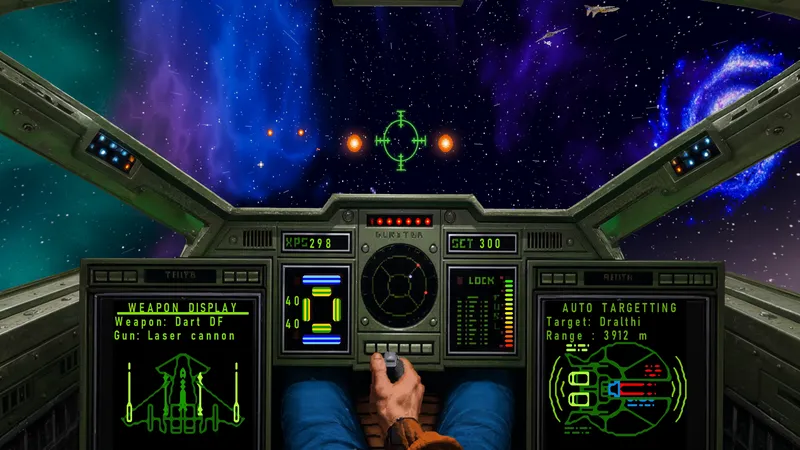
- Gun sight
- Speed (KPS): how fast you're going
- Set speed (SET): what your throttle asks for
- Shields and armour
- Radar
- Lock light and fuel
- Left screen: weapons (G, W) and damage (D)
- Right screen: target (T), communications (C) and navigation (N)
Radar colours
- Kilrathi fighters
- Confederation fighters, your co-op wing too
- Kilrathi capital ships
- Other Confederation capital ships
- A missile locked onto you
The Tiger's Claw has a colour of its own, and your target's dot is marked.
Radio and your wingman
C opens the communications screen. With no target, or with your wingman targeted, you're talking to your wingman. Otherwise it asks who to talk to: your wingman, or the ship you've targeted. Pick with the number keys. Only what makes sense right then is offered.
- To your wingman: Break and attack, Form on my wing, Keep formation, Attack my target, Help me out here, and Keep radio silence or Broadcast freely.
- To a Kilrathi you've targeted: a taunt. It may turn on you.
- To the Tiger's Claw: Request Landing.
B and H are shortcuts for Break and attack and Form on my wing.
Co-op and voice chat
Up to four pilots fly a mission together, each in their own fighter and cockpit, beside the story's wingmen. Each pilot needs their own installed copy and an internet connection.
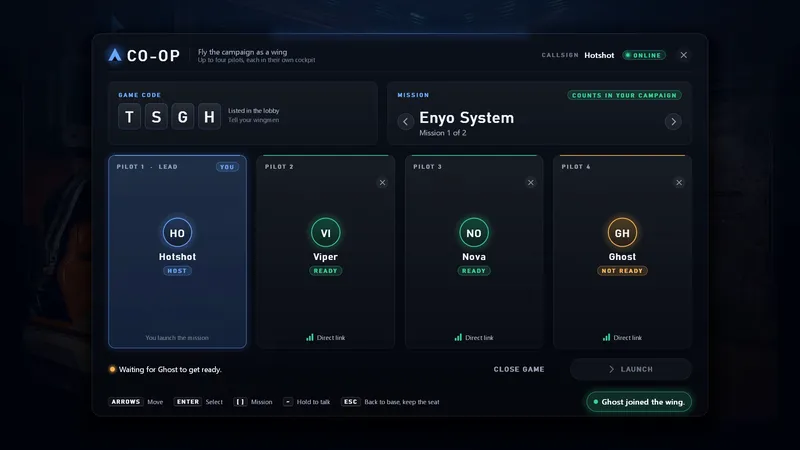
The lobby (F9)
- Press F9 in the bar or the barracks.
- Host a game and choose who can join. Anyone: listed in everyone's list of open games with a 4-letter code, open to any pilot. Password: listed too, with a lock, and only pilots with the password you set (4 to 16 letters or digits) get in. Code only: not listed, with an 8-letter code only the people you give it to know. The host picks the mission: any series and mission of their campaign.
- Join from the list, by typing the code, or with Quick join (it only picks open games). A game with a lock asks for its password; five wrong tries keep you out for a minute.
- Ready: each player says they're ready. The host launches once everyone is ready and connected, or launches alone.
- Each seat shows its connection: direct, or through the lobby when two home routers won't let the PCs reach each other.
- Esc takes you back aboard and keeps your seat: if the host launches, you're taken along.
- The host can remove a player: press the × on their seat twice.
| Keyboard | Arrows to move, Enter to choose, letters type a code (letters and digits in a password box), R ready, [ ] the mission (host), ~ hold to talk, Esc back aboard |
|---|---|
| Mouse | Point, click, and the wheel to scroll |
| Gamepad | D-pad or left stick to move, A to choose, B back, X ready or launch, Y refresh the list, LB / RB the mission |
In flight
- After the briefing and the scramble the wing gathers at the start; the host waits up to two minutes for everyone.
- Your friends show blue on the radar.
- Only the host flies the autopilot, and it takes the whole wing. A player's autopilot says it's the host's call.
- Voice chat: hold ` (~), or the PS5's mic button or the Xbox Share button, to talk. Whoever's talking shows at the top left with their callsign, and with a ring on their seat in the lobby. No microphone? You'll still hear the wing.
- If the PCs ever disagree about what's happening, the flight stops for everyone and counts for nothing. A player who drops out is let go after 15 seconds, and their fighter flies on.
- Afterwards the lobby comes back up for the next one.
What counts
The mission card says which. Counts in your campaign: the host picked their own next campaign mission, so it's flown as part of the host's campaign, with the debriefing, medals and promotions. Any other pick is a replay that counts in no campaign. Either way every pilot gets the mission and their kills on their own record.
VR (beta)
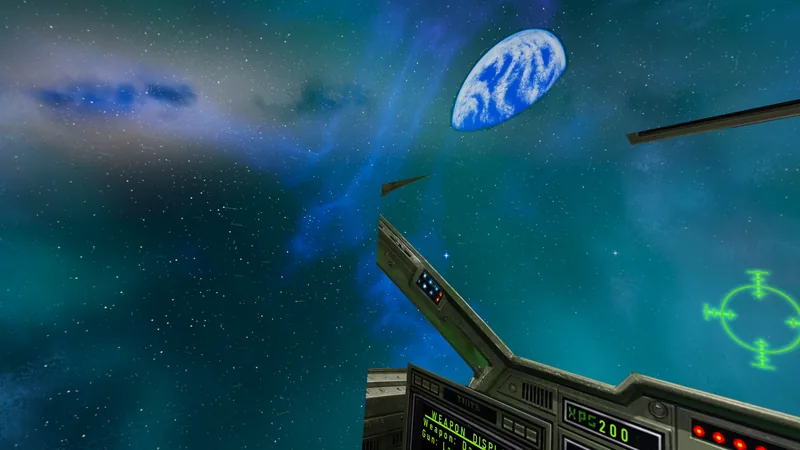
On a PC VR headset, space is all around you in stereo 3D and you look about with your head. The cockpit, its screens and the HUD sit in front of you, and the rooms, briefings and films play on a big screen. VR is new: tell us how it runs on your headset.
Starting in VR
- Pico 4 or Quest: run Virtual Desktop's streamer on the PC and connect from the headset. Then double-click
Play Wing Commander RTX in VR.cmdin the game's folder. - A headset on SteamVR (Valve Index, HTC Vive and others): start SteamVR with the headset on and SteamVR set as the OpenXR runtime (in SteamVR's settings). Then the same
Play Wing Commander RTX in VR.cmd. - Windows Mixed Reality: through the Mixed Reality Portal on Windows 10, or Windows 11 up to 23H2. Microsoft removed Windows Mixed Reality from Windows 11 24H2; there, the free Oasis driver brings those headsets to SteamVR.
- No headset found? The game plays on the monitor as usual.
Flying in VR
- Fly with the keyboard, a gamepad or a HOTAS, exactly as on the monitor. The headset's own controllers don't fly yet.
- The cockpit's screens are where they always were: glance down.
- If the cockpit isn't straight ahead, recenter with your headset's own recenter (Virtual Desktop and SteamVR both have one).
- The monitor shows what your left eye sees, for anyone watching.
- The cockpit covers the old game's cockpit: look far up or down and it ends.
WC1_RTX_VR_PANEL=1.2 | The cockpit's distance in metres (0.9 unless you say otherwise) |
|---|---|
WC1_RTX_VR_RES=0.7 | The eyes' resolution against what the headset asks for (0.5 to 2): lower for speed |
WC1_RTX_VR_STATS=1 | The headset's frame rate and any frames missed, every five seconds, in the game's messages (start bin\wc1-rtx.exe --vr from the Command Prompt to see them) |
WC1_RTX_VR_MIRROR=fit | The monitor shows the whole left eye, not cropped to fill |
Settings for the curious
A few switches are set before the game starts. Open a Command Prompt in the game's folder, set them, then start the game from there:
set WC1_RTX_WINDOW=2560x1080
"Play Wing Commander RTX.exe"
WC1_RTX_WINDOW=widthxheight | The window's size |
|---|---|
WC1_RTX_SMOOTH=0 | Smooth flight off: only the game's own frames |
WC1_RTX_COCKPIT_BOB=0 | No cockpit sway as you turn (other numbers scale it) |
WC1_RTX_DUST=0 | No space dust streaking past (other numbers scale it) |
WC1_RTX_VOICE=0 | Voice chat off |
WC1_RTX_VOICE_GAIN=1.4 | How loud the wing's voices play (1.4 unless you say otherwise) |
WC1_RTX_VOICE_HUD=0 | No talking callsigns on screen in flight |
If something goes wrong
- It won't start, or it crashes: send
bin\wc1-rtx-crash.txt(if there is one) andsetup.log, beside the launcher. They say what happened. - The videos won't play on a "Windows N" edition: install Microsoft's Media Feature Pack.
- The installer won't take your copy: it takes Wing Commander from Steam (choose
Wing1.exein itsKilrathi_Sagafolder) or GOG (choose itsWC.EXE), or the Kilrathi Saga's disc 1 as an.iso. Other versions, such as the EA app's, haven't been tried and may not be recognised;setup.logsays which file didn't match. - The controls are muddled: F10, then R, brings back the defaults.